

How it works
Every reply in Chat and Build, every Studio image and every Alchemy run uses an AI model, and all of them draw from a single balance of AI credits on your account. The same balance also pays for model calls made with your key from outside the app (see Inference).The model picker
The picker sits in the chat message box and shows the model in use. Click it to change model.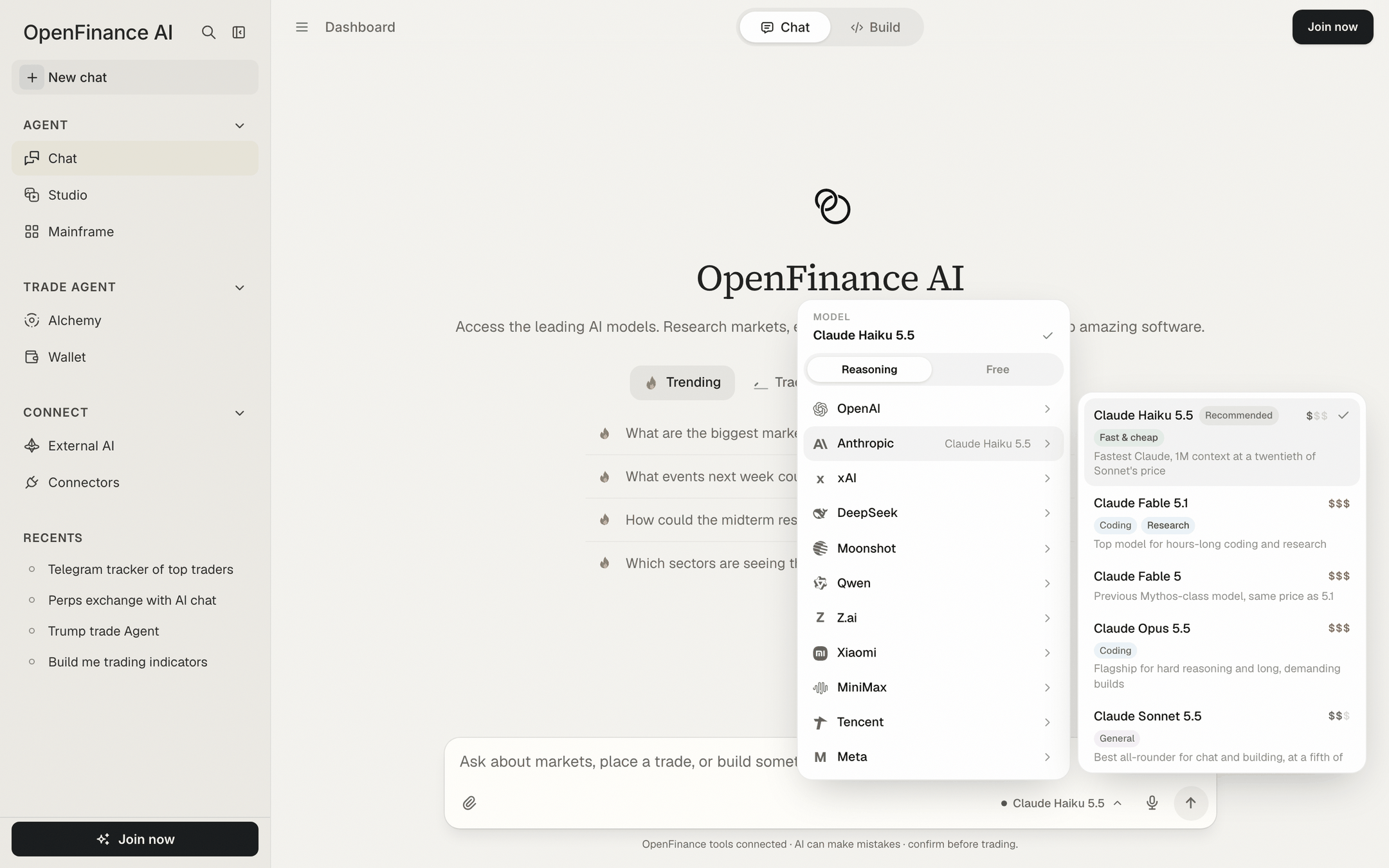
The model picker: category tabs on top, companies on the left, that company's models on the right
- Category tabs. In Chat mode the picker lists Reasoning models; in Build mode it lists Coding models. Both modes also have a Free tab.
- Companies. Models are grouped by the company that makes them, for example Anthropic, OpenAI, xAI, DeepSeek and Moonshot. Hover or click a company to see its models.
- Price tier. Each model shows one to three dollar signs: low, mid or premium. Hover the tier to see its price per million output tokens. Free models show Free.
- Strength tags. Short labels such as Coding, Research, General, Fast & cheap or Reads images tell you what a model is good at.
- A one-line description of when to use it.
”Latest” entries
Some families have an entry tagged Latest, for example the newest Claude Opus or the newest Grok. A Latest entry always points at the newest model of that family and switches by itself when a new one is released. Pick it when you want to stay current without checking back; pick a fixed version when you want the same model every time.How model choice behaves
- A model you pick stays for that chat. A new chat starts on the default again.
- When you switch between Chat and Build, your model comes along if the other list has it.
- If a model is retired, older chats that used it move to its replacement.
- Alchemy and Studio have their own shorter pickers, with models suited to those jobs.
Free models
The Free tab lists OpenFinance’s free models, such as OpenFi Advanced (which can read charts and screenshots), OpenFi Alpha and OpenFi Sense. They do not spend your AI credits. Two things to know:- They need a funded account. If your account has no credits, the app shows “Deposit to start chatting” and asks for a minimum deposit of $10 before free models can be used.
- They share capacity. At busy times a free model can stall or skip a reply. When that happens the app offers to retry on a paid model or to try the free one again.
AI credits
Where to see your balance
- Next to your name at the bottom of the sidebar.
- In the panel behind the Deposit button in the top bar, with credits available and used.
- On the Wallet page, in the AI Credits card.
- In Build mode’s side panel, on the Credits row.
What spends credits
Top up
The short version is below; Buy with crypto walks through every screen and every message the Fund button can show.1
Open Fund AI credits
Click Buy credits in the top bar panel, Buy more on the Wallet page, or Fund it next to Stablecoin under Settings > Billing.
2
Pick a network and token
Choose Solana, Base or Robinhood Chain, then a stablecoin your OpenFinance wallet holds on that network. A network that cannot take deposits yet is marked Soon.
3
Enter an amount
The box shows roughly how many credits you get; $1 comes to about 10 credits. The button tells you if the amount is under the minimum, more than you hold, or if you need a little of the network’s coin for gas.
4
Fund
Click Fund. The transfer is sent from your OpenFinance wallet and your new balance appears once it is confirmed.
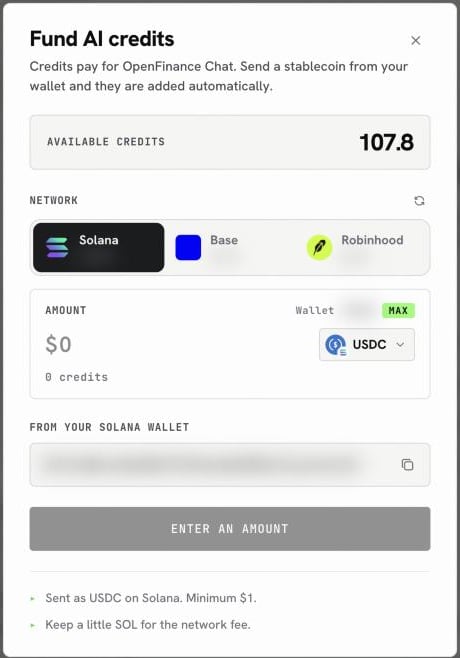
Fund AI credits: network, token, amount and the estimated credits
Free Compute
Settings > Free Subscription shows a Free Compute card: a monthly reward that unlocks when your perpetuals trading volume for the calendar month reaches the threshold on the card. Volume updates every 24 hours. Once unlocked, click Claim reward to receive a redeem code with instructions.Tips
- Use a low-tier model for quick lookups and a higher tier for long research or large builds.
- If a reply fails on a free model, retry on the paid default instead of resending the same message.
FAQ
The chat says I am out of credits. What now?
The chat says I am out of credits. What now?
Click Buy AI credits on the message and fund from your wallet. Your chat stays as it is, and you can retry the message afterward.
My transfer went out but credits did not appear
My transfer went out but credits did not appear
Solana deposits are picked up automatically within a few minutes. For other networks, keep the transaction hash the app shows and send it to support at dev@openfinance.tech so the credits can be applied.
Do credits pay for trades?
Do credits pay for trades?
No. Credits pay for AI work only. Your trades use the funds in your wallet and on each venue; see Deposit funds.
Next
Chat
Where you use the model picker day to day.
Inference
Call models from your own code with the same key and credits.
Wallet
Deposit the stablecoins you buy credits with.
Buy with crypto
Top up your credits step by step.