

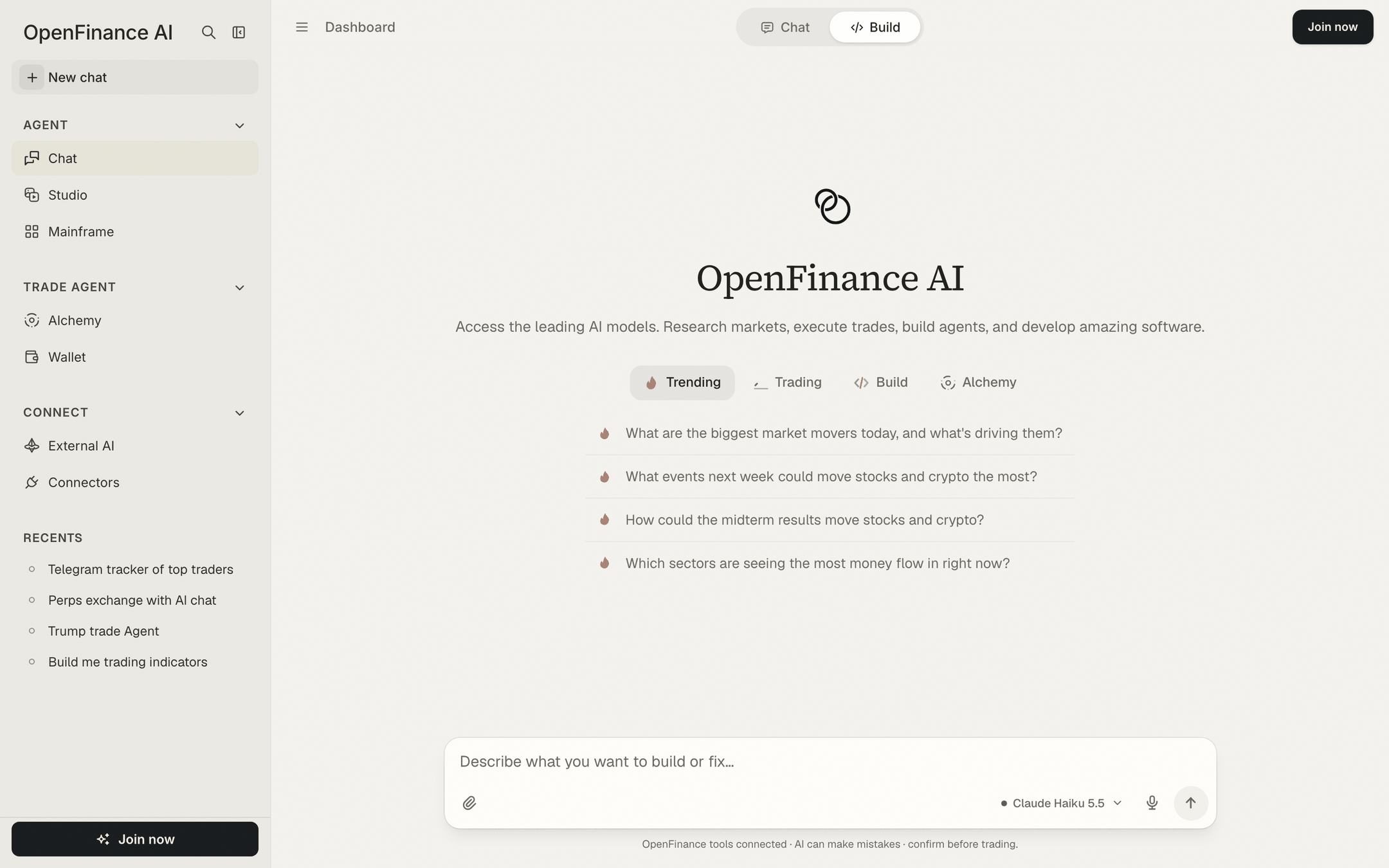
Build selected in the top bar of the chat
How it works
In Build mode the model works with a private sandbox instead of only writing text. It creates files, installs packages, builds the app and gives you a preview you can click around in. The code is yours: push it to a GitHub repo, deploy it to Vercel for a permanent address, or copy it out of the Code view. People use it for things like a Telegram bot that tracks posts, a live crypto dashboard with charts and alerts, a trading journal with a profit and loss calendar, a landing page for a token.Start a build
1
Switch to Build
Click Build in the toggle at the top of Chat. You can also type a build request in Chat mode and click Switch to Build on the hint, or pick a prompt from the Build starter tab.
2
Describe the app
Say what it does, what data it shows, and how it should look. The message box reads “Describe what you want to build or fix…”.
3
Watch the checklist
A progress card tracks the build stage by stage: Start the sandbox, Write the files, Install packages, Build the preview, and Write a summary. A build error shows on its row while the agent fixes it.
4
Open the preview
When the build is done, the preview opens beside the chat by itself. It does not open midway, so you never look at a half-built app.
5
Ask for changes
Keep chatting: “make the chart taller”, “add a dark theme”, “fix the error on the settings page”. The agent updates the files and rebuilds.
The preview panel
The panel header has everything you need to inspect and ship the app:- Preview / Code. A dropdown switches between the running app and the files the agent wrote.
- Push to GitHub. Pick one of your repos and a branch, or create a new repository.
- Deploy. Pick a Vercel project, or create a new one.
- Open in browser, Reload preview and a copy button for the preview address or the current file.
The Build panel
On wide screens a side panel sits to the right of the chat. It folds to a thin strip when you do not need it.Ship it
Connect GitHub and Vercel once, from the Build panel or the Connectors page. After that you can ship in two ways: click Push or Deploy, or simply ask.When a deploy fails
If a Vercel deploy does not go through, the chat shows a card in place of a dead end:- If Vercel was never connected, the card reads Connect Vercel to deploy. Click Connect Vercel and sign in.
- If it was connected and the deploy still failed, the card reads “Vercel deploy didn’t go through”. Your app is kept. Click Reconnect Vercel; reconnecting fixes most failed deploys.
- Once connected, the card changes to Vercel connected. Click Deploy again. The agent redeploys the same app without rebuilding it.
Example prompts
Tips
- One clear page beats a vague platform. Start small, look at the preview, then add features one message at a time.
- Name your data source (“Hyperliquid funding rates”, “Polymarket odds”) so the agent does not invent one.
- If a run pauses, click Continue run. It resumes from the last step.
- Building costs more credits than chatting because the agent writes many files. Pick a coding model that fits the size of the job; see Models and AI credits.
- Apps written by AI can have bugs. Review what a bot does and test with small amounts before you trust it with funds.
FAQ
Do I need GitHub and Vercel to build?
Do I need GitHub and Vercel to build?
No. You can build and preview without them. You need them only to push the code or get a permanent address.
Can I see and copy the code?
Can I see and copy the code?
Yes. Switch the preview panel to Code to browse the files, and use the copy button for the open file.
I started a build in Chat mode. Where is my app?
I started a build in Chat mode. Where is my app?
The reply shows an Open in Build card. Click it to see the code, the preview and the Build panel.
Is there a faster way to start?
Is there a faster way to start?
Yes. Mainframe has ready-made templates that open in Build mode with one click.
Next
Mainframe
Start from a template instead of a blank prompt.
Connectors
Connect GitHub and Vercel before you ship.
Chat
The other mode: research and trading.
Inference
Give the apps you build access to AI models.