

How it works
You sign in to OpenFinance with your email address. That one account owns your wallet, your API key, your AI credits and your saved sessions. Settings does not change how trading works; it is where you manage the account around it.The account panel
Click Deposit in the top bar, or your name at the bottom of the sidebar. Both open the same panel.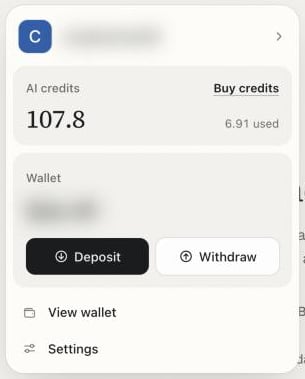
The account panel: credits, wallet balance and shortcuts
From the sidebar, the panel also has:
- Help & feedback: Contact support (email to dev@openfinance.tech) and Docs.
- Learn more: Terms of Service, Privacy Policy and Tutorials.
- Sign out.
The Settings window
Settings opens as a window over the page you are on, with a search box and six sections.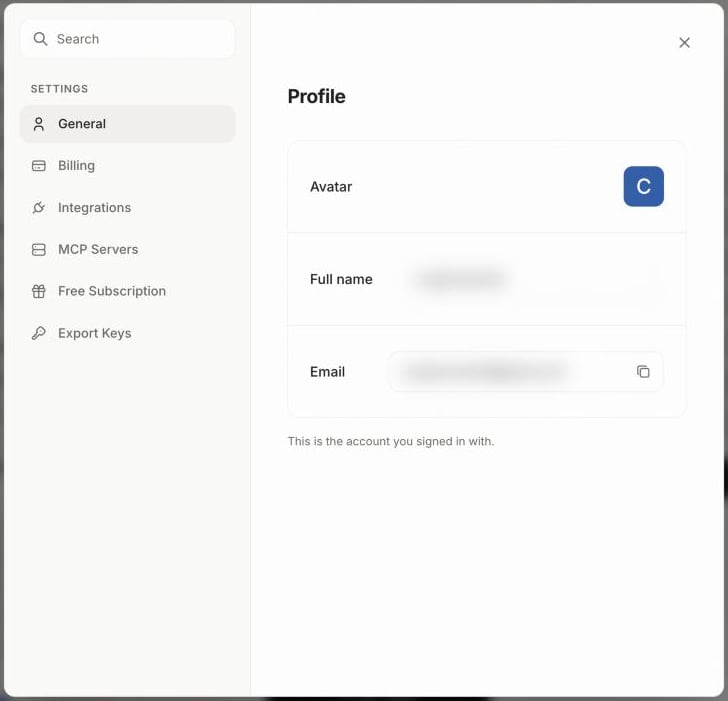
Settings, with its six sections on the left
Integrations and MCP Servers show the same connections as the Connectors page, so use whichever is closer to hand.
Common tasks
If you came here to do one thing, it is probably one of these.Top up AI credits
Top up AI credits
Open the account panel and click Buy credits, or go to Settings > Billing and click Fund it. See Models and AI credits.
Connect or disconnect GitHub and Vercel
Connect or disconnect GitHub and Vercel
Go to Settings > Integrations. Disconnecting here forgets the connection on the OpenFinance side; to fully revoke access, also remove it in GitHub or Vercel.
Export my wallet keys
Export my wallet keys
Go to Settings > Export Keys. All EVM chains share one key and Solana has its own. Anyone with these keys can move everything in the wallet, so never paste them into a chat, an email or a site you do not fully trust.
Check my Free Compute progress
Check my Free Compute progress
Go to Settings > Free Subscription. The card shows this month’s perpetuals volume against the threshold, the reward, and the date it resets.
Find my API key
Find my API key
It is not in Settings. Open External AI in the sidebar.
Get help
Get help
Click your name at the bottom of the sidebar, then Help & feedback > Contact support. You can also reach OpenFinance on X at @openfinancelabs.
The sidebar
The sidebar is the app’s main navigation.- New chat starts a fresh chat.
- Three sections, Agent, Trade Agent and Connect, hold the pages. Click a section’s name to fold it.
- Recents lists your chats, Studio sessions and Alchemy runs. Search them, filter by type, and delete a session from its options menu. A session that is still working shows a moving marker.
- The collapse button at the top shrinks the sidebar to icons. Your choice is kept as you move between pages.
The welcome disclaimer
The first time you sign in, a disclaimer appears before anything else. It explains that OpenFinance is experimental, that it does not give financial advice, that AI can be wrong, and that your API key gives full access to your wallet. You must tick four boxes and click I understand & agree to continue. It is shown once per account.Every trade needs your confirmation, and nothing in OpenFinance is financial advice. Never trade more than you can afford to lose.
FAQ
Can I change my email or name?
Can I change my email or name?
The profile shows the email you signed in with and a name taken from it. There is no edit control in Settings today.
Can I pay by card?
Can I pay by card?
Not yet. Card payment is marked Coming soon. Credits are bought with stablecoins from your OpenFinance wallet.
How do I sign out?
How do I sign out?
Use Sign out in the sidebar account panel or in the avatar menu in the top bar.
Next
Wallet
Balances, deposits, sending and key export.
Models and AI credits
How credits work and how to top up.
Connectors
Manage every connected account in one place.
External AI
Your MCP server URL and API key.