

How it works
Chat is connected to OpenFinance’s market and wallet tools through your account. When you ask a question, the model decides which tools to call, shows each step as it runs, then writes the answer. Read-only steps (prices, balances, order books) run on their own. Steps that can place an order or move funds stop and show a Confirm this action card. Each reply is paid for with AI credits, and the model you pick sets the price.Every trade needs your confirmation, and nothing the chat says is financial advice. AI can be wrong, so read the confirmation card before you approve.
Chat mode and Build mode
A toggle at the top of the page switches between two modes.
Every new chat starts in Chat mode. If you type something that reads like a build request, a hint appears above the message box: Looks like something to build, with a Switch to Build button. If you send it anyway, the app asks Send this to Build? and nothing starts until you pick Go to Build or Send in Chat. See Build mode for the full flow.
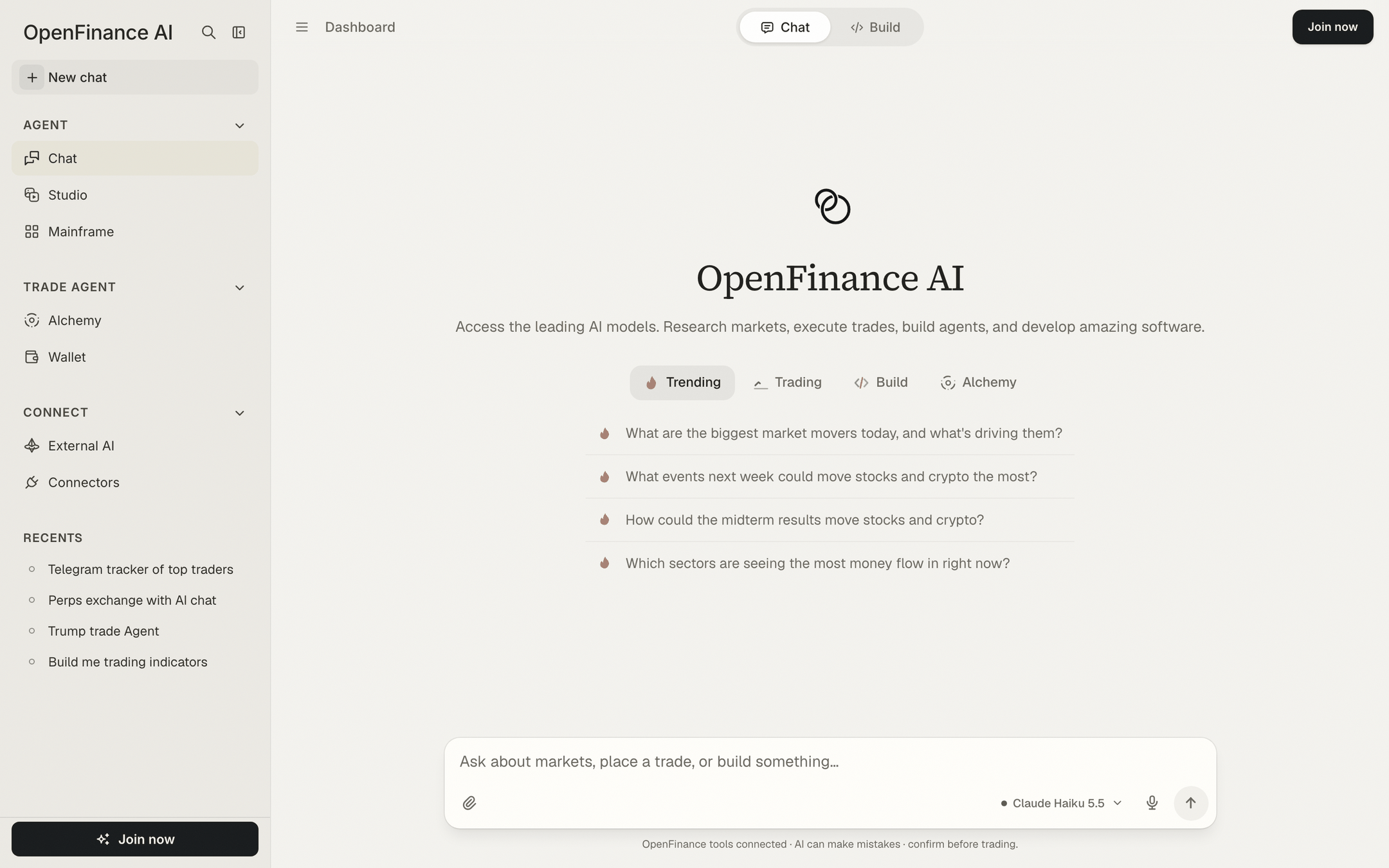
The chat home: mode toggle on top, starter tabs under the message box
Starter tabs
A new chat shows four tabs of ready-made prompts. Click one to send it.- Trending: what is moving markets today and what is coming up.
- Trading: questions about specific stocks, crypto and perp funding.
- Build: app ideas. Picking one switches to Build mode before it sends.
- Alchemy: event questions. Picking one opens Alchemy instead of the chat.
The message box
Besides typing, the message box takes files, long pastes and your voice.- Attach files. Click the paperclip or drag files onto the box. You can add up to 5 attachments per message, 8 MB each. What a model can read depends on the model: some accept documents and images, some images only, and some text only. The button tells you when the chosen model cannot read a file type.
- Paste long text. A long paste (roughly six lines or more) becomes a card above the box instead of a wall of text. Up to 5 pasted texts per message.
- Dictate. In browsers that support speech recognition, a microphone button turns speech into text.
- Pick a model. The model picker sits in the message box. See Models and AI credits.
- Stop. While a reply is being written, the send button becomes a stop button.
Confirming a trade
When the agent wants to do something that can move funds or place an order, the reply pauses on a card.1
Read the card
It names the action the agent wants to run and lists the exact inputs: market, side, size, price and so on.
2
Decide
Click Approve & run to send it, or Deny to cancel. The card then shows Approved or Denied.
3
Check the result
The agent continues with the outcome and reports what happened. Ask it to show the open order or position if you want proof.
Watching the agent work
Tool steps appear as one line, such as “Fetching Polymarket markets” or “Searching the web”, and collapse to “Ran 4 steps” when done. Click the line to expand it and see every step, including any marked Failed or Paused. If a reply is cut off, the chat does not go quiet:- Continue run picks up a paused run from its last step, without repeating a trade that already went through.
- Try again appears when no reply came back.
- Retry sits on every error message.
Example prompts
Tips
- Say the venue, the market, the side and the size. “Buy $25 of Yes on the top Fed decision market on Polymarket” leaves less to guess than “bet on the Fed”.
- Ask for a read first (“show the order book”, “what would this cost”) and the trade second.
- Use Chat mode for questions and trades, Build mode for apps. A cheaper model is fine for lookups; pick a stronger one for long research.
- Your past sessions are under Recents in the sidebar. Search them, filter by Chat, Studio or Alchemy, or delete one from its options menu.
FAQ
Can the agent trade without asking me?
Can the agent trade without asking me?
No. Actions that can move funds or place an order show the confirmation card, and nothing is sent until you approve.
Why did I get a 'Deposit to start chatting' message?
Why did I get a 'Deposit to start chatting' message?
Your account has no AI credits yet. Add credits to continue. Free models also need a funded account before they can be used; see Models and AI credits.
Does a new chat remember my last model?
Does a new chat remember my last model?
No. Every new chat starts in Chat mode on the default model. A model you pick stays for that chat, and a reopened chat keeps the model it ran on.
Can I use Chat without signing in?
Can I use Chat without signing in?
You can look around, but sending a message asks you to sign in first.
Next
Build mode
Turn a prompt into an app with a live preview.
Models and AI credits
Choose a model and manage what it costs.
Markets
What you can ask the chat to trade.
Alchemy
Start from an event instead of a ticker.