

How it works
Studio is a feed of prompts and results, like a chat that answers in pictures. Each prompt runs on an image model you choose. The cost in credits is shown before you generate, so there is no surprise afterward. A follow-up such as “make it bluer” works because Studio sends the newest image along as context. Two modes are live today:
The mode switcher in the top bar also lists Music, Video, Story Editor and Folders. Those are marked Coming soon and cannot be used yet.
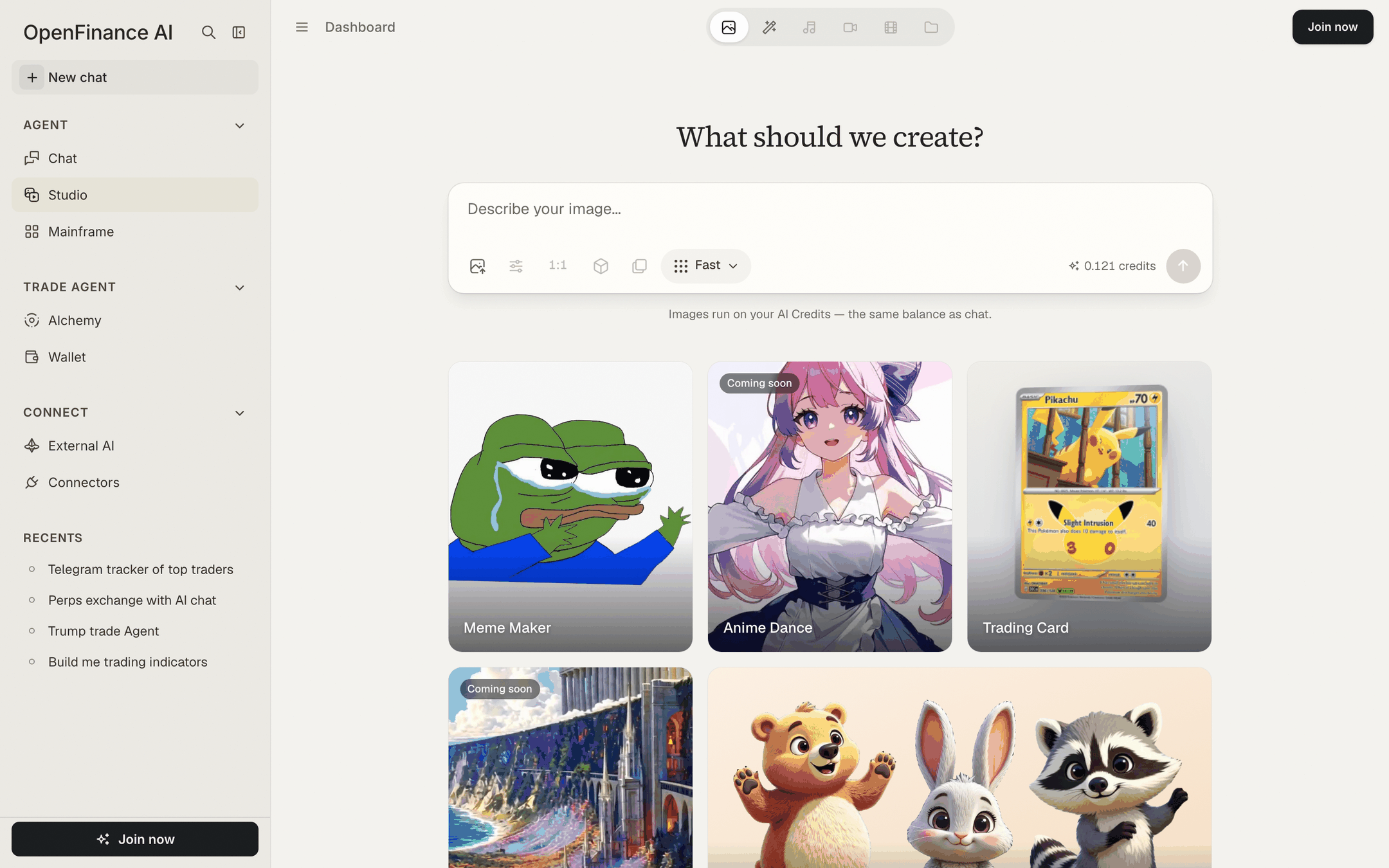
Studio's empty page: the prompt box with example cards underneath
Generate an image
1
Open Studio
Click Studio in the sidebar under Agent. The page asks “What should we create?”.
2
Describe the image
Type a description in the box, or click one of the example cards (Meme Maker, Trading Card, Plush Mascot and others) to load its prompt and adjust it.
3
Check the model and cost
The model picker in the box lists the image models and what one image costs in credits. Your choice is remembered. The cost of the next image shows beside the send button.
4
Generate
Click the send button. The result appears in the feed. Click it to view full size.
Edit an image
1
Switch to Edit
Pick Edit in the mode switcher at the top.
2
Add a reference image
Click the reference image button in the box and choose a PNG, JPEG or WebP file. Keep it under about 6 MB.
3
Describe the edit
Say what should change and what should stay, then send.
After it generates
Under each result you get:- Download, to save the image as a PNG.
- Edit prompt, to load that prompt back into the box so you can change it and run it again.
- The number of credits the image cost.
Example prompts
Tips
- Describe subject, style, background and lighting. “Product photo, white background” or “flat vector, thick outline” steers the result more than adjectives do.
- Iterate in the same session. Short follow-ups build on the newest image.
- Download anything you want to keep. See the limit below.
Limits
- Images live in your browser. A generated image is kept only in the browser that made it. If you open the session elsewhere, or clear your browser data, Studio shows that the image is no longer there and offers Generate it again.
- Prompt length. A prompt can be up to 2,000 characters.
- Not yet available. Aspect ratio, style, variations and settings controls are visible but marked Coming soon.
- Credits. If you run out, the feed shows Add credits. See Models and AI credits.
FAQ
Where do my Studio sessions go?
Where do my Studio sessions go?
They appear in Recents in the sidebar, next to your chats. Use the filter to show Studio only.
What happens if I close the tab while an image is generating?
What happens if I close the tab while an image is generating?
The run still finishes and the session stays in Recents. Images are stored in your browser though, so one that did not reach it shows as missing, with a Generate it again button. Keep the tab open until the image appears.
Can Studio make video or music?
Can Studio make video or music?
Not yet. Those modes are listed as Coming soon. Image and Edit are live today.
Next
Models and AI credits
How image costs come out of your credit balance.
Build mode
Build the site your new artwork belongs on.
Mainframe
Website and app templates you can launch as they are.
Chat
Research and trade in plain language.