

How it works
The wallet is embedded and self-custodial, powered by Privy. It is created when you sign up, so there is nothing to install. You get:- One EVM address that is the same on every EVM chain (Ethereum, Base, Arbitrum, Polygon, Robinhood Chain and others).
- One Solana address.
- A Polymarket deposit address, a separate address on Polygon that holds the balance Polymarket trades from.
Every trade and transfer needs your confirmation, and nothing here is financial advice. Transfers on a blockchain cannot be reversed.
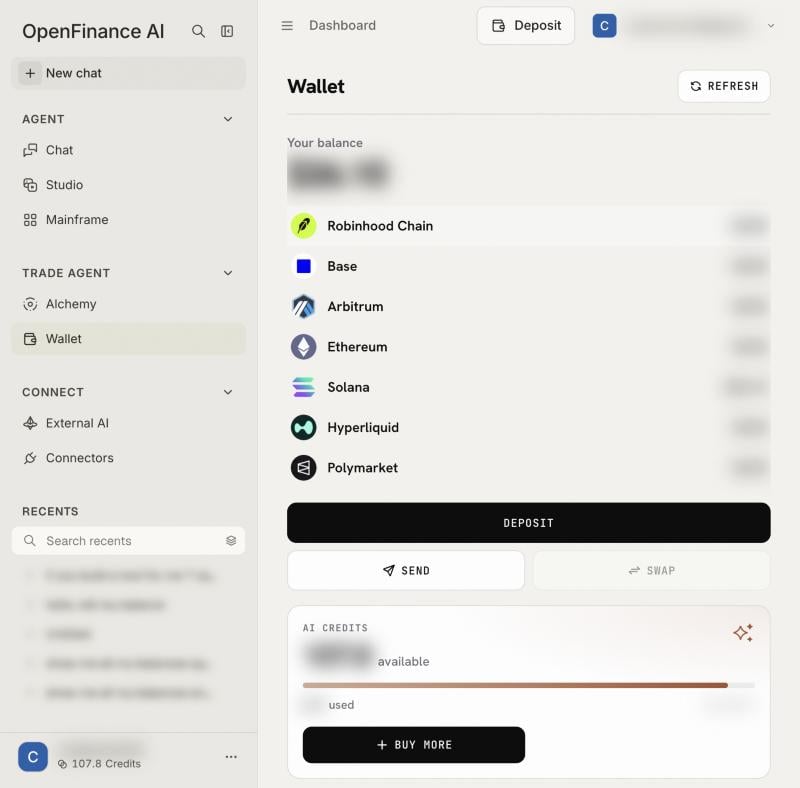
The Wallet page: total balance and venues on the left, tokens for the selected venue on the right
Read your balances
Open Wallet in the sidebar under Trade Agent.- Your balance is the total across every venue that has loaded.
- The venue list shows a value per venue: Robinhood Chain, Base, Arbitrum, Ethereum, Solana, Hyperliquid and Polymarket. Click one to see its tokens.
- For the selected venue you see its balance, its address (with a copy button and a link to the block explorer), and a table with Token, Balance, Value, PnL and Actions.
- Search tokens filters the table. Hide tokens without a price is on by default, which keeps airdropped spam out of view; turn it off to see everything.
Deposit
Every venue takes one token on one network, so the tab you pick matters. Deposit funds has the full guide, with a page each for Polymarket, Hyperliquid and onchain tokens.1
Open the Deposit sheet
Click Deposit on the Wallet page, or Deposit in the top bar and then Deposit in the panel.
2
Pick the tab
EVM for any EVM network, Solana for Solana, Polymarket for your Polymarket balance.
3
Send funds to the address
Scan the QR code or copy the address, then send from your other wallet or exchange. The sheet lists the networks that address accepts.
Hyperliquid works differently. To fund it, hold USDC on Arbitrum and ask the chat to deposit it. Hyperliquid accepts USDC only, and its deposits come from Arbitrum.
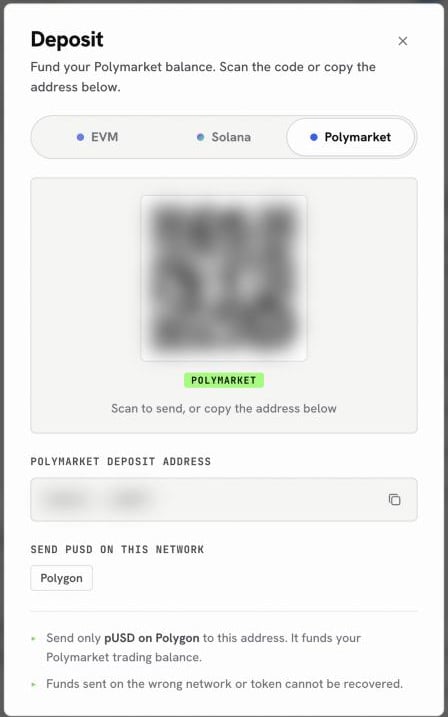
The Deposit sheet on its Polymarket tab
Send and withdraw
Send moves a token from your wallet to another address on the same chain.1
Open Send
Click Send on the Wallet page, Send on a token’s row, or Withdraw in the top bar panel.
2
Fill in the transfer
Choose the venue and token, paste the recipient address and enter an amount. Leave a little of the chain’s own coin for gas.
3
Review
The Review transfer step shows the details. If the address is not one of your own wallets, you must tick a box confirming that you checked the full address.
4
Confirm
A final check asks you to read the address end to end. Click Yes, send it.
- Bridging and swaps run through chat. The Swap button on the Wallet page is disabled for now; ask the chat to swap or bridge instead.
- Hyperliquid and Polymarket balances have no plain Send. Their rows say via chat. Ask the chat to withdraw; Hyperliquid withdrawals go to your address on Arbitrum for a flat $1 and take about 5 minutes.
Export your keys
1
Open Settings
Open the account menu and click Settings, then Export Keys.
2
Choose a key
Click Export EVM Key or Export Solana Key. All EVM chains share one key; Solana has its own.
3
Store it safely
The key is shown in a secure Privy window. Keep it offline.
Launches tab
Next to Tokens, the Launches tab lists tokens your wallet has created, with any creator earnings you can claim.Example prompts
Wallet actions that the page does not do itself go through Chat:FAQ
Who holds my funds?
Who holds my funds?
You do. The wallet is self-custodial: trades and transfers are signed by your own wallet, and you can export the keys.
A venue shows 'failed' or the total looks low
A venue shows 'failed' or the total looks low
One of the balance reads did not come back. The total only counts venues that loaded. Click Refresh in a moment.
Why does the page say my agent key is still being set up?
Why does the page say my agent key is still being set up?
Right after sign-up, your key is still being created. Balances load as soon as it is ready.
I see tokens I never bought
I see tokens I never bought
Anyone can send tokens to a public address. Leave unknown tokens alone, and keep Hide tokens without a price on.
Next
Quickstart
Fund the wallet and place a first trade.
Markets
Where each balance can be used.
Settings and account
The account menu, Settings and key export.
Deposit funds
Which tab to use for each venue.