

How it works
There are two kinds of connector, shown as two sections on the page.
Once a connector is connected, its tools are available in every chat. Nothing else changes: you still ask in plain language, and trades still wait for your confirmation.
Every trade needs your confirmation, and nothing here is financial advice. Orders placed through a connected brokerage run in your own account at that broker, under that broker’s rules.
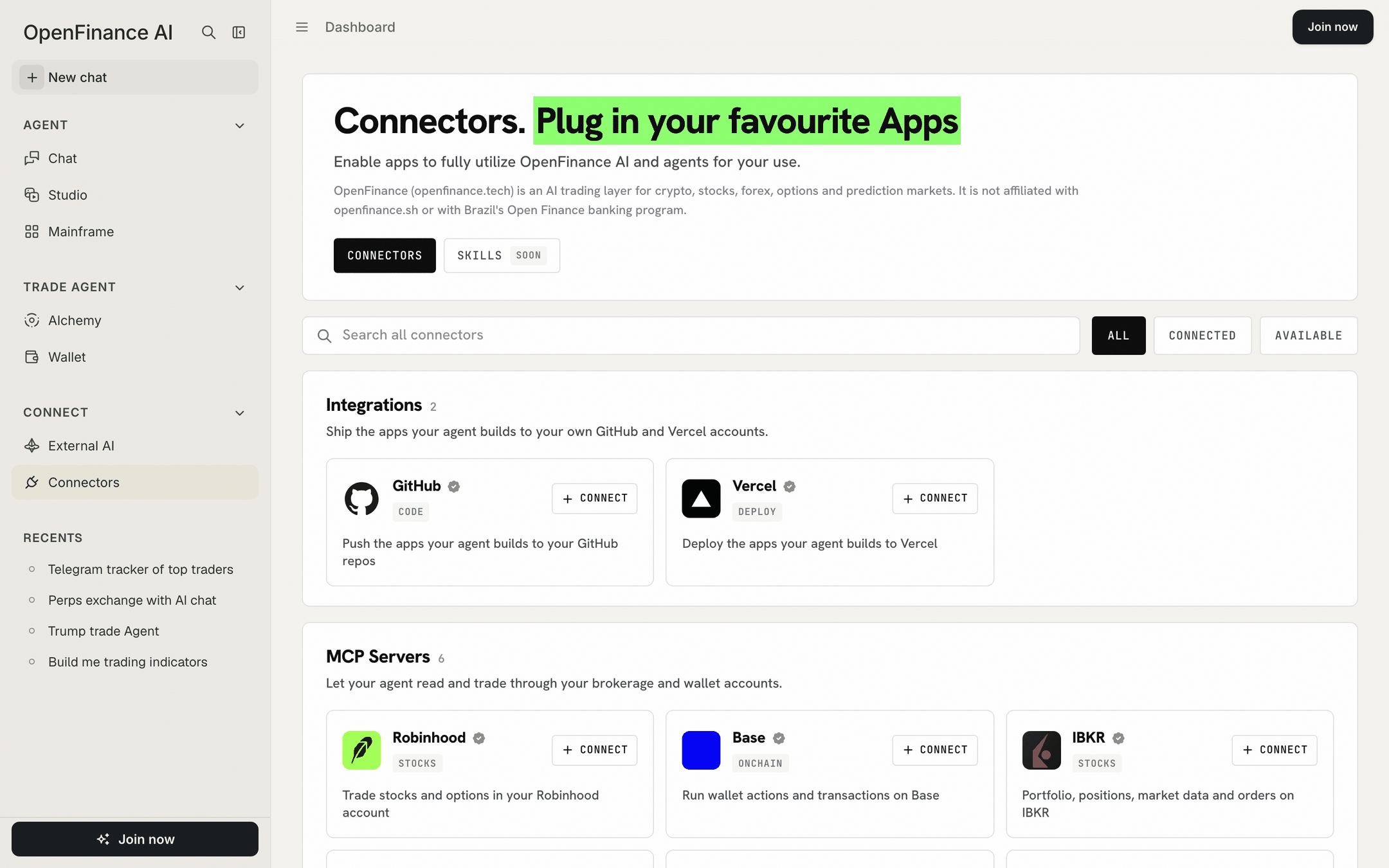
The Connectors page: search and filters, then Integrations and MCP Servers
What you can connect
The list is served by OpenFinance and changes over time. At the time of writing the page shows:
A connector marked Coming soon cannot be connected yet. The Skills tab at the top of the page is also marked Soon.
If you want to trade options, this is the way in: options trade through your own IBKR or Robinhood account connected here.
Connect an account
1
Open Connectors
Click Connectors in the sidebar under Connect. Use the search box or the All, Connected and Available filters to find what you need.
2
Open the card
Click a card to read what the connector does and what connecting allows.
3
Click Connect
A new tab opens at the provider. Sign in and approve access. Some connectors ask you to paste an API token instead.
4
Come back
The tab closes by itself and the card shows Connected. For a connected MCP server, the card’s details list the tools it gives the agent.
Disconnect or reconnect
Open the connector’s card and click Disconnect. This removes the connection on the OpenFinance side. To fully revoke access, also remove OpenFinance in the provider’s own settings. If a card shows “Last use failed”, the last call to that connector returned an error. If it keeps happening, disconnect and connect again.Other places you will see connectors
The same connections show up in a few other places, so you can connect from wherever you are.- Settings > Integrations and Settings > MCP Servers show the same connections with the same Connect and Disconnect buttons.
- Build mode’s side panel has Connect buttons for GitHub and Vercel under Ship your app.
- Mainframe has the same two buttons at the top of the gallery.
- Alchemy lists brokers under Markets connected; Enable brings you to this page.
Example prompts
After connecting a brokerage, ask in Chat:Tips
- Connect GitHub and Vercel before you start a long build, so the deploy at the end does not stall.
- Connect only the accounts you want the agent to reach. A connected brokerage can place orders after you approve them.
- If a deploy fails in Chat, the reply shows a card to connect or reconnect Vercel and deploy again. See Build mode.
FAQ
Do I need to be signed in?
Do I need to be signed in?
You can browse the page signed out. Connecting asks you to sign in.
Does OpenFinance see my brokerage password?
Does OpenFinance see my brokerage password?
No. For sign-in connectors you sign in on the provider’s own page and approve access there. A few connectors use an API token that you paste in instead.
Is this the same as connecting Claude or ChatGPT?
Is this the same as connecting Claude or ChatGPT?
No. Connectors bring outside accounts into OpenFinance. To use OpenFinance from an outside AI tool, see External AI.
Next
Build mode
Use GitHub and Vercel to ship what you build.
External AI
The other direction: outside AI tools using OpenFinance.
Markets
Which venues need a connector and which do not.
Alchemy
See broker venues appear in trade ideas.