

How it works
OpenFinance runs an MCP server: a standard way for AI tools to call outside services. Once a tool such as Claude or Cursor is connected to it, that tool can read markets and prepare trades on your OpenFinance account, the same way the in-app chat does. Every request to the server needs to prove who you are, in one of two ways:- OAuth sign-in. Tools that support it (Claude on web and desktop, ChatGPT) send you to OpenFinance to click Authorize. No key to paste.
- Your API key. Tools configured by file or command line send your key in an
x-api-keyheader.
Every trade needs your confirmation, and nothing here is financial advice. A connected tool acts on your real account, so only connect tools you trust.
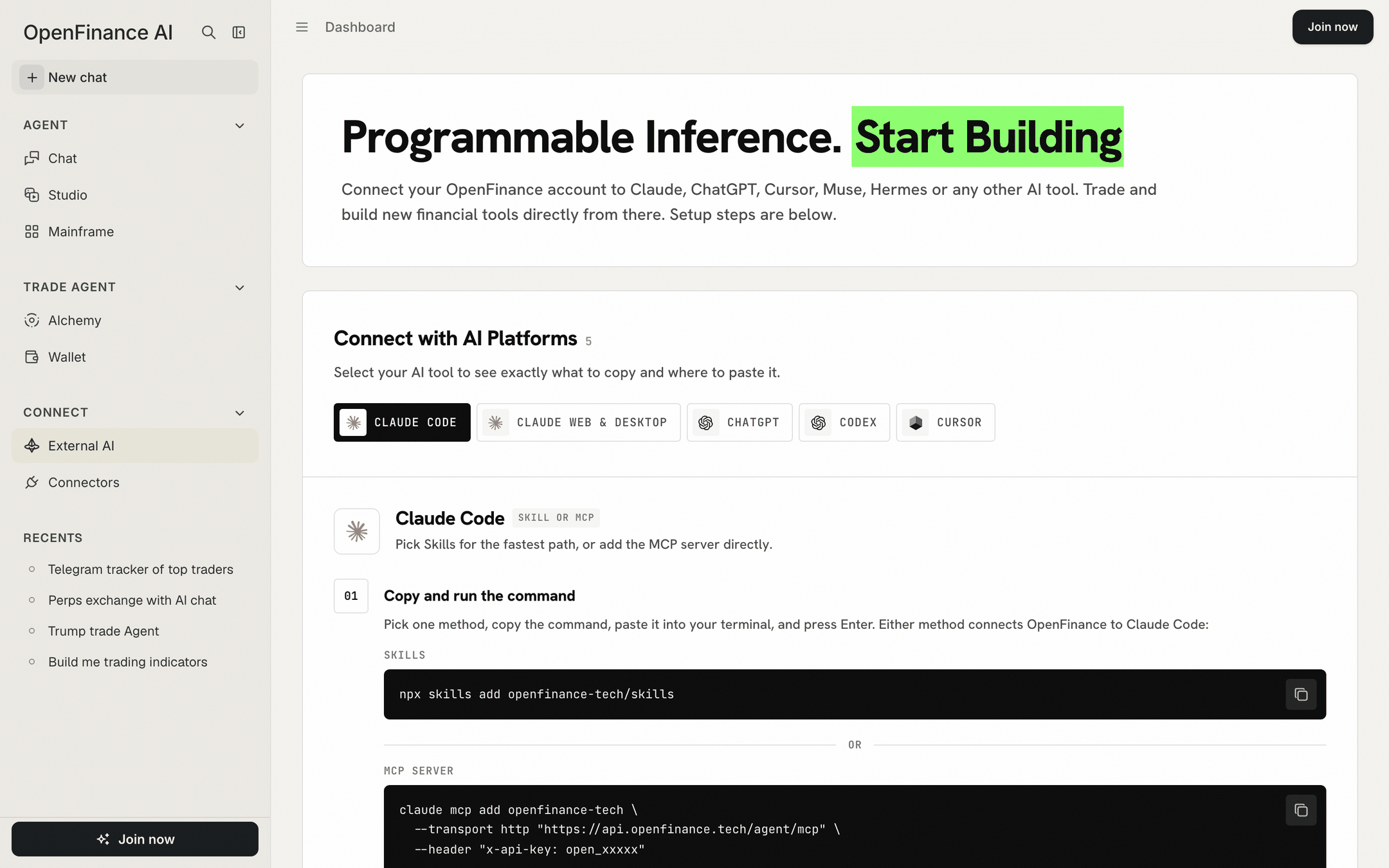
The External AI page: pick your tool, follow its steps, copy the URL and key
What is on the page
The page has two parts: one that walks you through your tool, and one that holds what you copy. Connect with AI Platforms. A row of tools: Claude Code, Claude Web & Desktop, ChatGPT, Codex and Cursor at the time of writing. Click one to see exactly what to copy and where to paste it. Each step has its own copy button, and the last step suggests prompts to try. Connect OpenFinance to your AI. A card with your two credentials:
Your key is created automatically when you first sign in. There is one key per account, and it is the same key the in-app chat uses.
Connect a tool
1
Open External AI
Click External AI in the sidebar under Connect.
2
Pick your tool
Click its chip. The steps below change to match.
3
Copy and paste
Follow the numbered steps. Commands and config snippets already contain your key, so you can paste them as they are.
4
Test it
Ask the tool one of the suggested prompts, for example “Check my OpenFinance Wallet balance”.
The one-time pUSD notice
The first time you open External AI, a notice titled Send only pUSD to Polymarket appears. It is there because a connected agent can fund your Polymarket wallet, and anything other than pUSD sent to it can get stuck.- It tells you to send only pUSD on Polygon to your Polymarket deposit address.
- Open, next to “Check wallet address here”, opens the Deposit sheet on its Polymarket tab so you can confirm the address.
- To close the notice, type
PUSDin the box and click I understand.
Keep your key safe
- Anyone with your key can trade on your behalf. Treat it like a password.
- Do not commit it to a repository or paste it into shared chats. The setup snippets on this page contain your full key, so keep them out of screenshots and screen shares.
- Prefer OAuth sign-in where the tool supports it, so the key never leaves OpenFinance.
- When a tool lets you, store the key in an environment variable instead of a config file.
Example prompts
Once a tool is connected, try these in that tool:FAQ
Where do I create an API key?
Where do I create an API key?
You do not need to. The key is created for you at first sign-in and shown on this page. If the field is still loading right after sign-up, give it a moment.
My tool is not in the row. Can I still connect it?
My tool is not in the row. Can I still connect it?
Usually yes. Any tool that supports MCP over HTTP can use the server URL with either OAuth or the
x-api-key header. See the MCP overview.Which AI model answers when I use an outside tool?
Which AI model answers when I use an outside tool?
The outside tool’s own model, on that tool’s own plan. OpenFinance supplies the market data and the trading. AI credits pay for AI work inside OpenFinance; see Models and AI credits.
Is this different from Connectors?
Is this different from Connectors?
Yes. External AI lets outside AI tools use OpenFinance. Connectors bring outside accounts, such as a brokerage, into OpenFinance.
Next
API keys
How keys and OAuth sign-in work.
Quick install
Two commands for Claude Code.
MCP overview
The server, its tools and supported clients.
Inference
Call AI models from your own code with the same key.