

Where Alchemy can trade
The basket draws only on venues Alchemy can send orders to. There are three.
IBKR and Robinhood routes appear on cards and in Trade Exposure so you can see the coverage, but Alchemy does not send orders to them.
The Markets connected panel
You decide which of those venues to use from a panel on the right edge of Alchemy and Positions. It starts as a thin strip of venue marks; click it to open Markets connected and Your trades.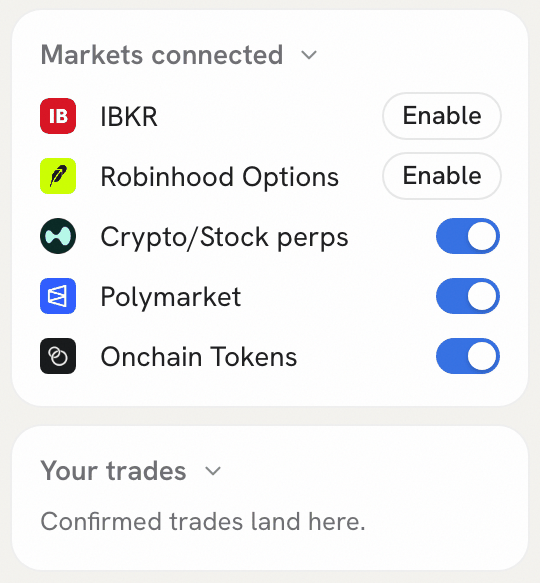
Markets connected: switch venues on or off; brokers show Enable
- Crypto/Stock perps, Polymarket and Onchain Tokens are on by default. Switch one off and its trades grey out, with a Connect button on each that switches the venue back on.
- IBKR and Robinhood Options show Enable, which opens the Connectors page.
- The switches are remembered in your browser and shared by both tabs.
The basket
Basket trades holds every trade for the view you picked, with the best reward to risk first. The header says how many trades there are and “Sized to $10,000”, the default budget.Cards view
The default view is a row of cards you can slide sideways with the arrows. Each card shows:- The trade line, such as “Short NVDA on Hyperliquid” or “Buy Yes on Polymarket”.
- Editable chips: Allocate (dollars), Profit (target in percent), and for perps the leverage and cross or isolated margin.
- The price, today’s change and a chart with 1D, 1W, 1M and ALL ranges.
- For prediction markets, Expiry, Volume and Liquidity.
- Chips for the same exposure elsewhere, such as “NVDA stock” at IBKR or “NVDA puts” at Robinhood. These are for reference.
- Action opens the order ticket. Learn explains the trade.
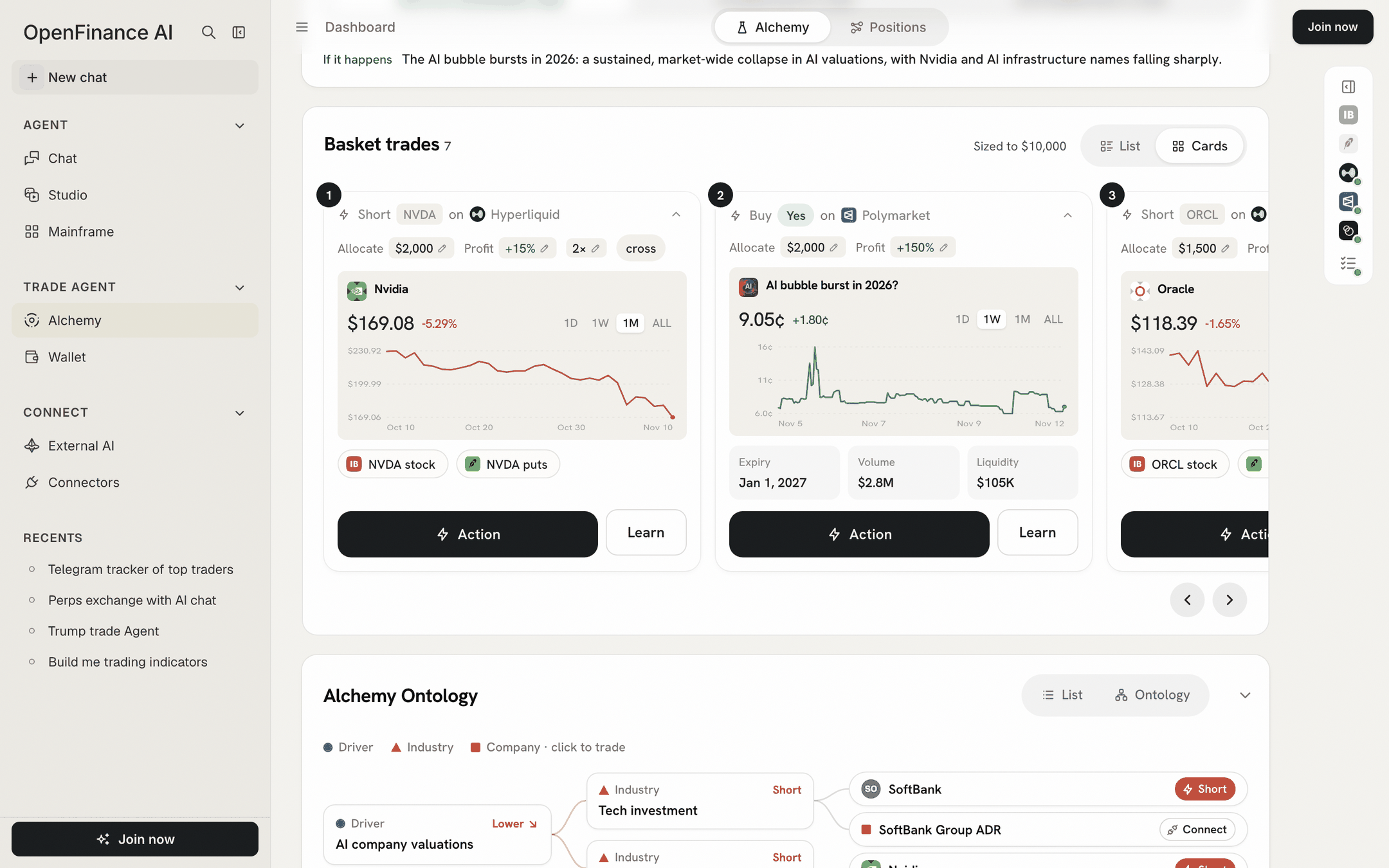
Basket trades in Cards view
List view
Click List for a plan you can size at a glance. The first row is labelled Top pick; the others are labelled Direct bet, Stock, Macro or Crypto. Each row shows:- The reward to risk, for example “3.0× reward to risk (+150% / −50%)”.
- A risk note: “Worst case −$2,000 if it resolves No” for a prediction market, “Liquidation ≈ +45% move” for a leveraged perp, “No leverage” otherwise, or the funding cost when the hold is long.
- The amount, which you can edit, with what it makes at the target and loses at the stop.
- A Trade button.
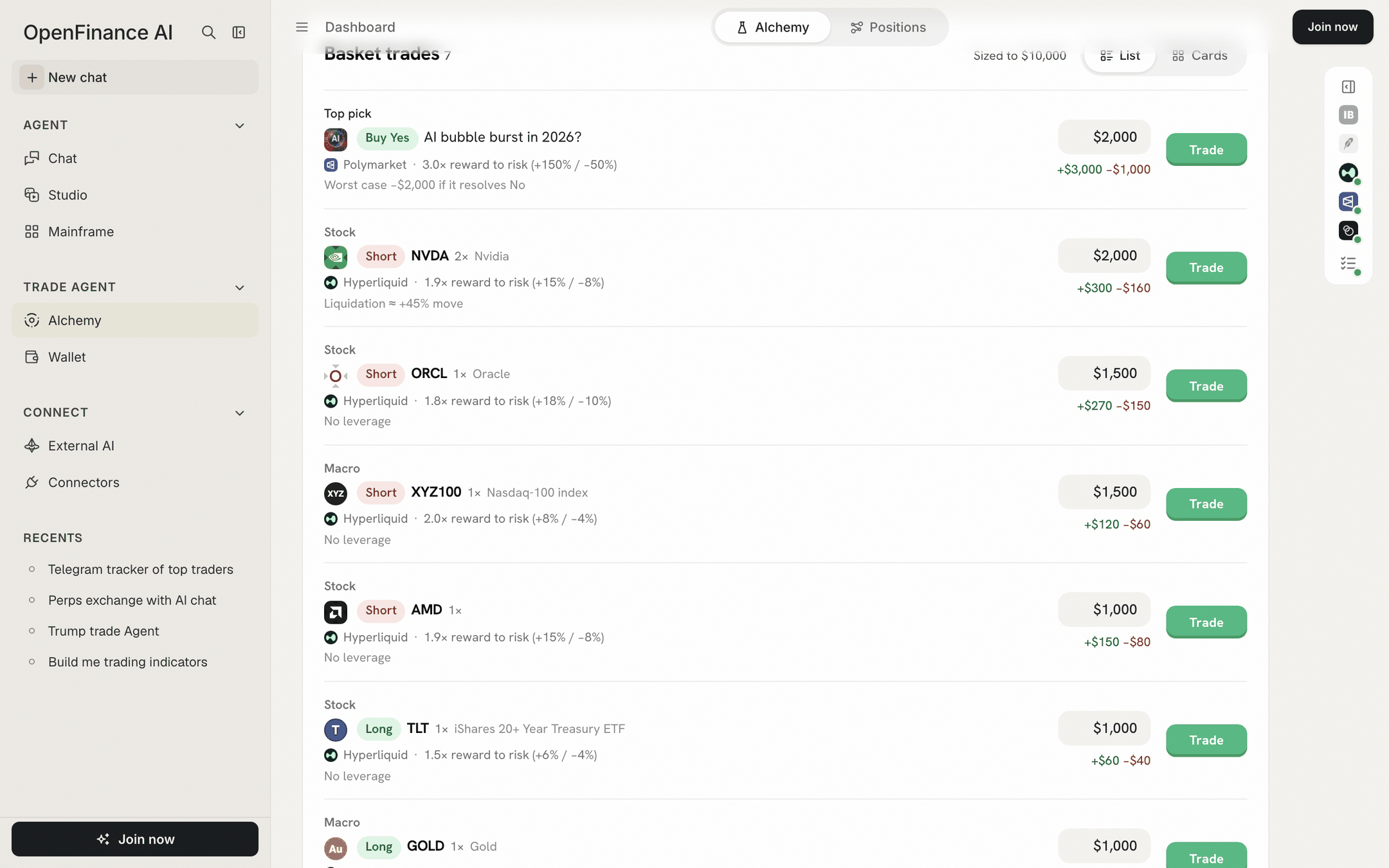
Basket trades in List view: Top pick first, each row with its reward to risk and worst case
Budget and how sizes are split
At the bottom of List view, set Budget to what you would really put to work. Alchemy then:- Takes the trades on venues you have switched on.
- Splits the budget by the weights the model gave each trade, in $10 steps.
- Gives the last trade whatever is left, so the total always equals the budget.

The List view footer: budget, totals and Review
The profit target and stop on each trade are planning numbers. Alchemy does not place take-profit or stop orders; you exit yourself, for example with Close on the Positions tab.
Review the basket
Click Review N trades to open Review your basket: a numbered list with each trade’s amount, venue, target and stop, and an Open ticket button per row. In the app’s words, “Each one opens its own order ticket, and nothing is placed until you confirm there.”Learn before you trade
Before you open a ticket, Learn on a card gives you a plain-language explainer for that one trade:- Why this trade and The thesis behind it.
- How the trade works, step by step: the instrument, the sizing in dollars, the holding period, liquidity and the exit.
- Key figures: price, volume and liquidity for a prediction market; price, funding per hour, open interest and 24h volume for a perp.
- Notes on what can go wrong, ending with “Nothing here places an order; the Action button does.”
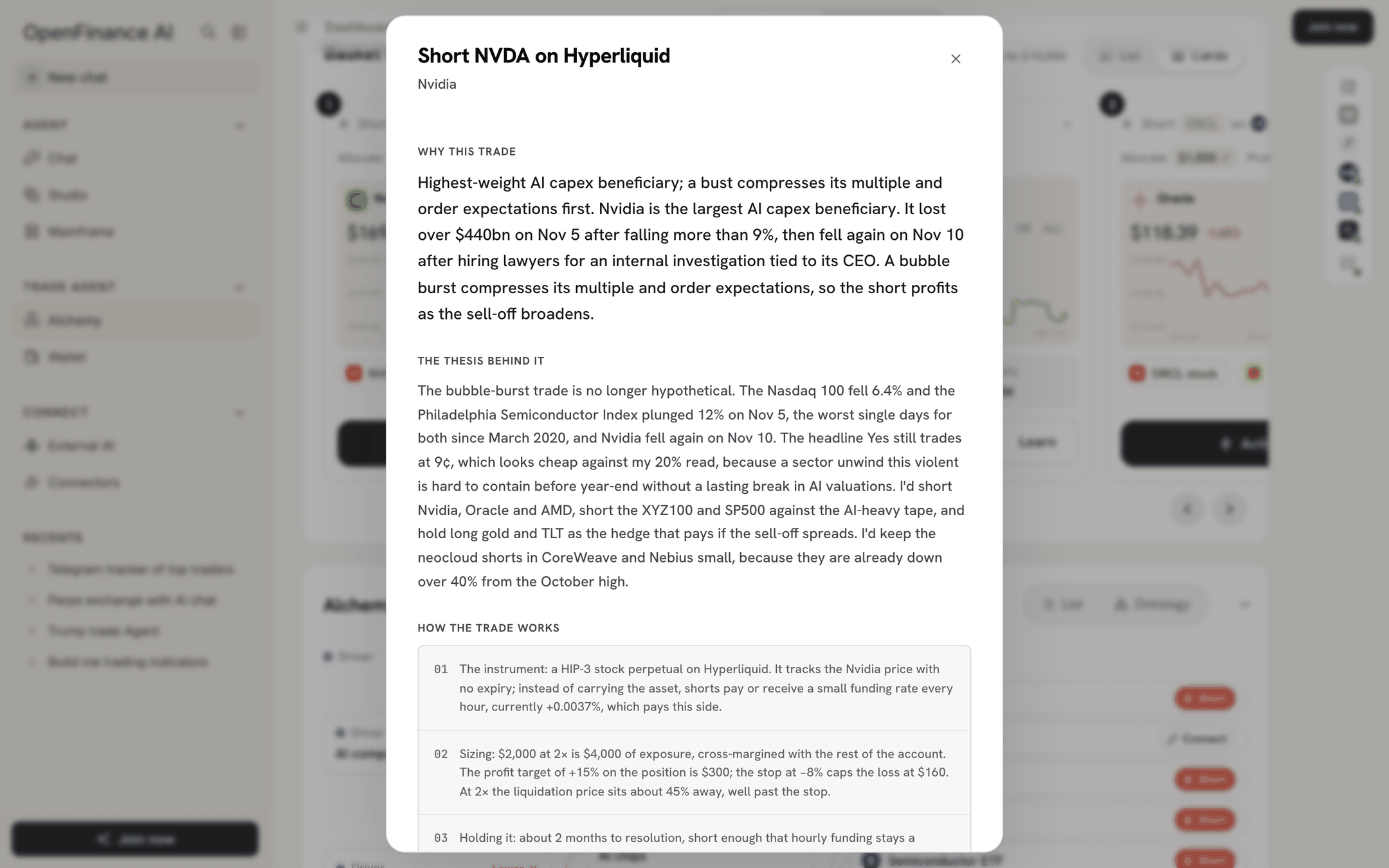
Learn: the reasoning and the mechanics of one trade
Next
The order ticket
Place one trade: sides, amounts, funds and confirming.
Positions
Track and close what you placed.