

1. Preview the demo
Click a card’s picture, or hover it and click Open demo. The demo opens full size in a viewer with New tab, Prompt and Deploy buttons.- Website templates show a Live demo: the actual page running in the viewer, video and animations included.
- Trading templates show Demo · captured: a screen of the finished app recorded with live data. It is a picture, so nothing in it is connected to an account.
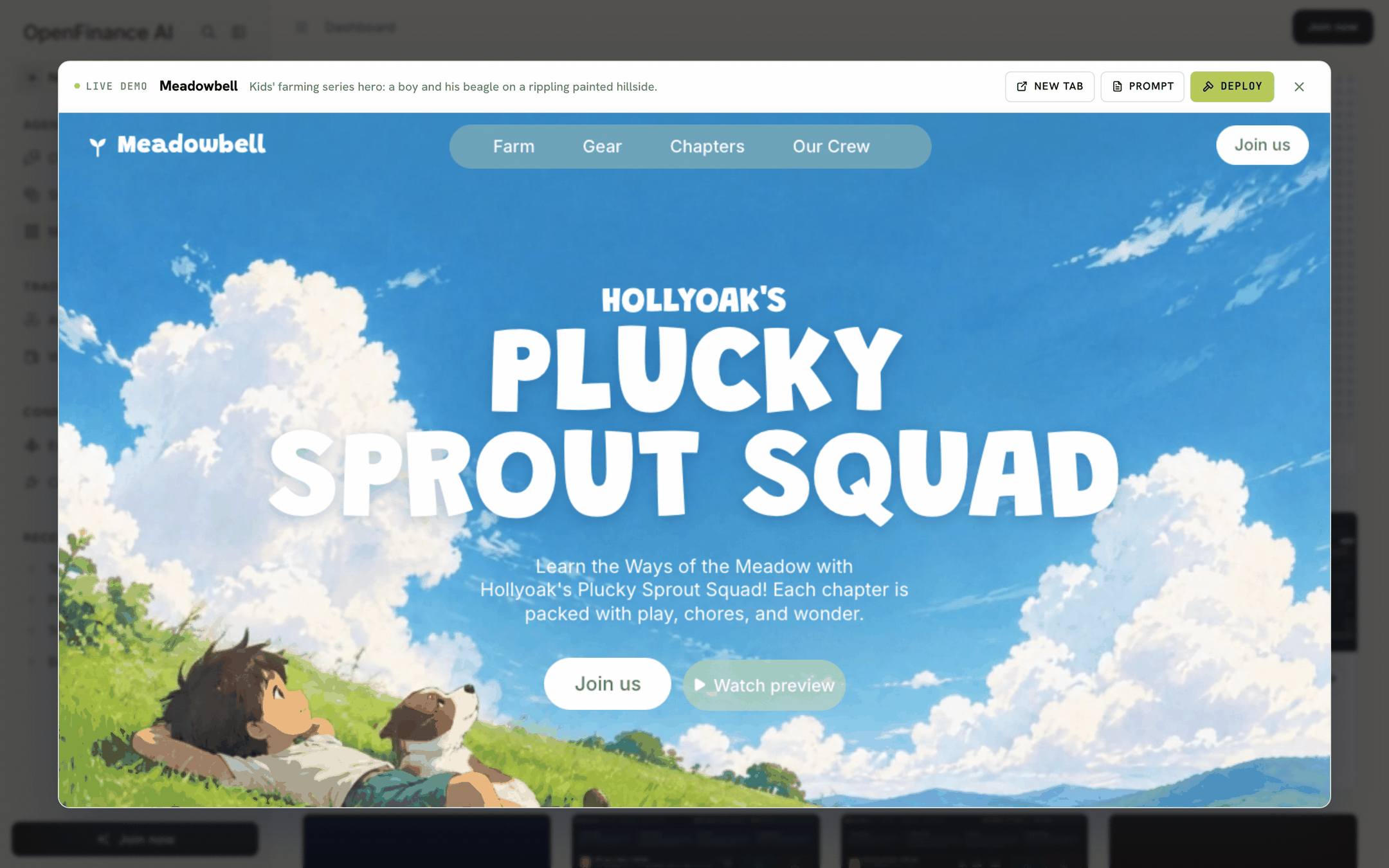
The demo viewer, with New tab, Prompt and Deploy in the header
2. Read the prompt
Click Prompt to read the full brief. The window shows the template’s name, its one-line description, the prompt text and its length, with Copy prompt and Deploy at the bottom.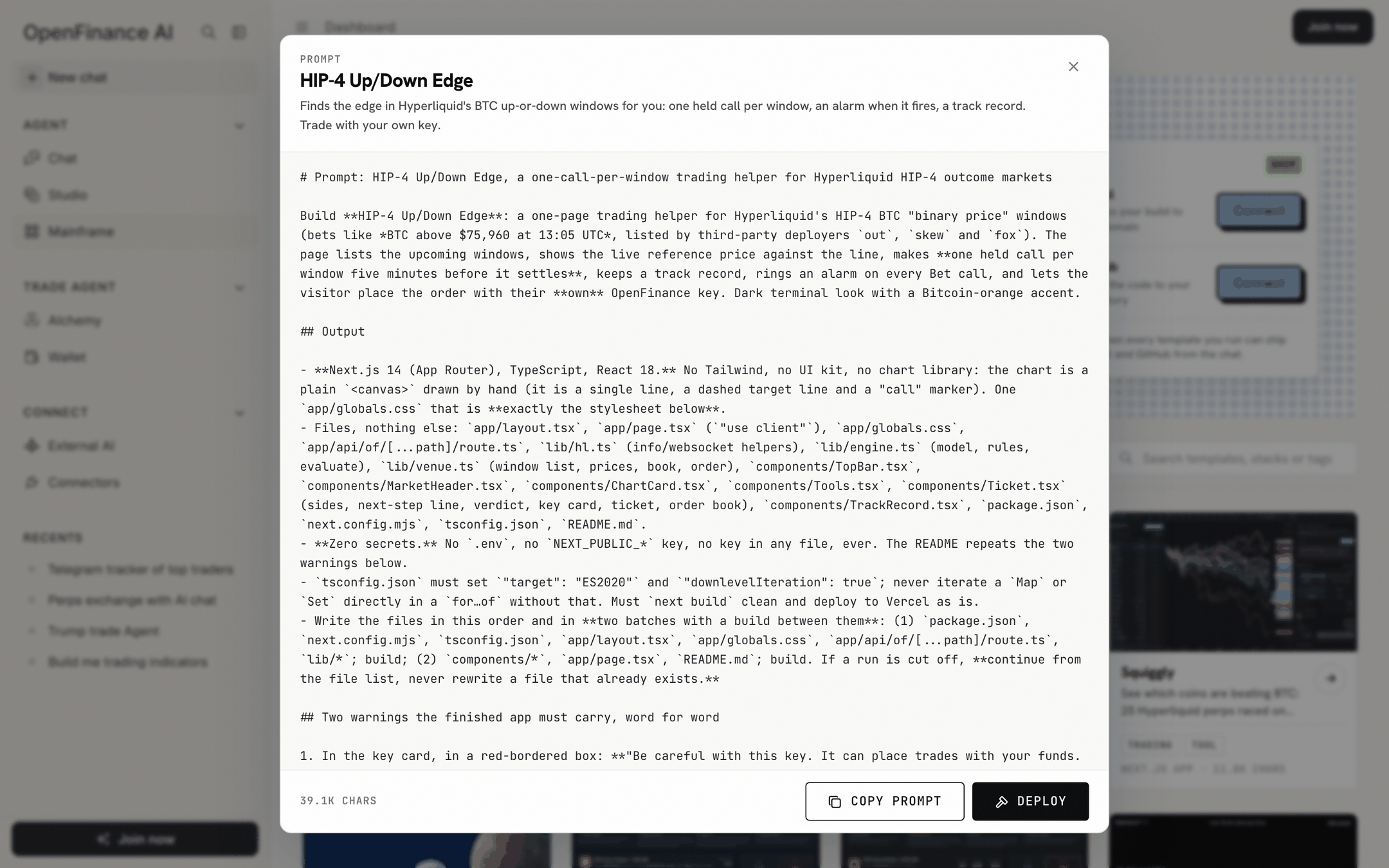
A template's prompt window
3. Click Deploy
Deploy is on the card, in the demo viewer and in the prompt window. Clicking it:- Loads the template’s prompt and keeps it in your browser tab.
- Opens Chat. If you are not signed in, you are asked to sign in; the prompt waits and is not lost.
- Switches Chat to Build mode, whatever mode it was in, so the build runs on Build mode’s coding model.
- Sends one message, “Build this exactly as specified:” plus the template’s name, with the whole prompt attached.
4. Connect GitHub and Vercel
Most prompts open with a reminder to connect GitHub and Vercel before the build starts. Use the Connectors card at the top of the Mainframe page: Vercel deploys your build to your domain, GitHub saves the code to your repository. Each Connect button opens the provider’s sign-in in a popup; once it reports back, the button reads Connected. You connect once and every later template can use it. You can also connect from the Build panel or the Connectors page. Building and previewing work without them; you need them only to push the code or get a permanent address.5. Watch the build, then ship it
From here it is a normal Build mode run: a checklist tracks each stage, and the preview opens beside the chat when the build is done. When you are happy with the preview, ship it with two messages:What you end up with
Once the app is pushed and deployed, you have three things:- A repository in your GitHub account with the full source code.
- A deployed site on your Vercel account, at an address you control.
- A chat that remembers the build, so you can keep asking for changes.
Edit it afterwards
Come back to the same chat and describe the change in plain words. The builder edits the files, rebuilds and shows the new preview; then push and redeploy.Tips
A few habits make builds smoother and safer:- Open the demo before you deploy. It is the fastest check that the template is what you want.
- Long prompts cost more AI credits than a short chat. Check your balance first; see Models and AI credits.
- If a run pauses, click Continue run. Some trading prompts tell the builder to work in two batches and to continue from the file list instead of starting over.
- AI-built software can have bugs. Run through the template’s acceptance checks yourself before you rely on a trading tool, and test with small amounts.
FAQ
Do I need an account to look around?
Do I need an account to look around?
No. You can browse, open demos, read and copy prompts while signed out. Deploying and connecting GitHub or Vercel ask you to sign in.
What if I did not connect GitHub and Vercel first?
What if I did not connect GitHub and Vercel first?
The build still runs and you get a preview. Connect them afterwards, then ask the chat to push and deploy.
Can I deploy the same template twice?
Can I deploy the same template twice?
Yes. Each Deploy starts a new build with its own code, so you can keep two versions side by side.
Is the demo the same as what I get?
Is the demo the same as what I get?
It is what the prompt is written to produce. Your build is made fresh from the prompt, so small details can differ. Ask for changes until it matches.
Next
Customize a template
Edit the prompt first, or ask for changes after.
Keys and safety
Read this before you deploy a trading template.